1. Installation process.
To install Telegram 2Mt4 copier, click on “Download” below.
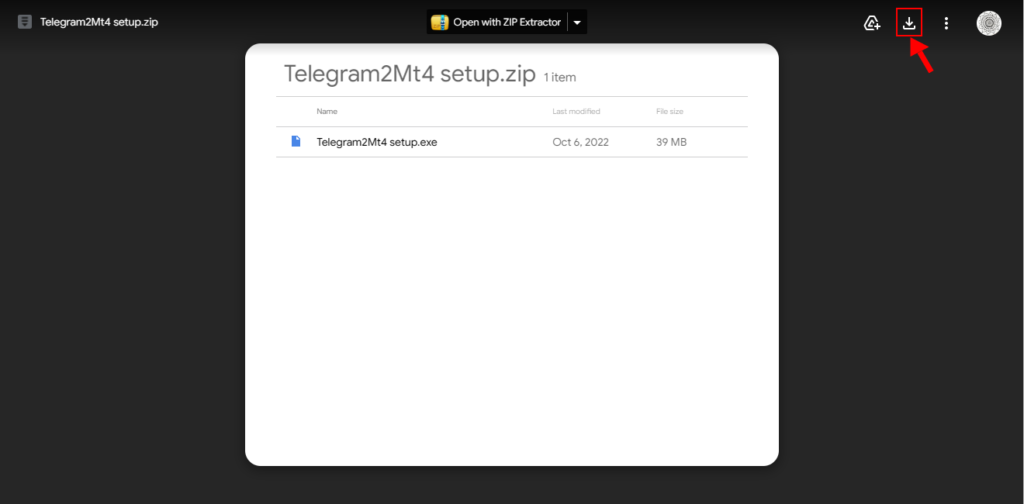
📥 Download (EA version 1.9)Once clicked on the link, Click the download icon to download the Telegram2Mt4 copier.
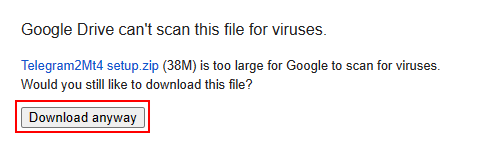
Click Download anyway to download the copier.
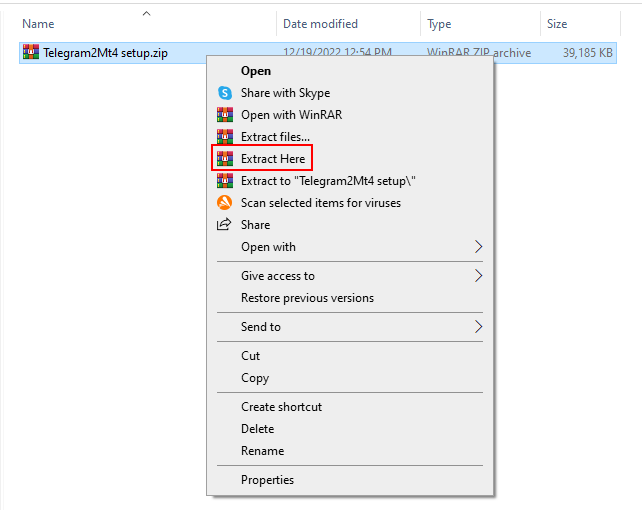
Once downloading is completed, Go to the downloaded file and make sure to extract all files in the zipped folder before opening the setup.
To setup the copier, Open Telegram2Mt4 setup.exe.

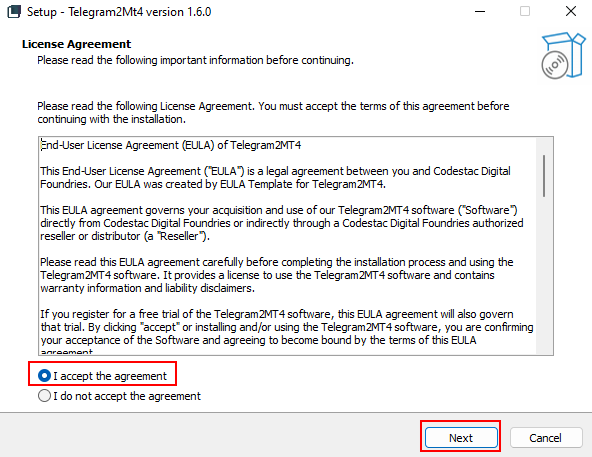
Select “I accept the agreement” under the license agreement and click “Next.”
Leave all install options as default and continue to click “Next” and select “Install.”
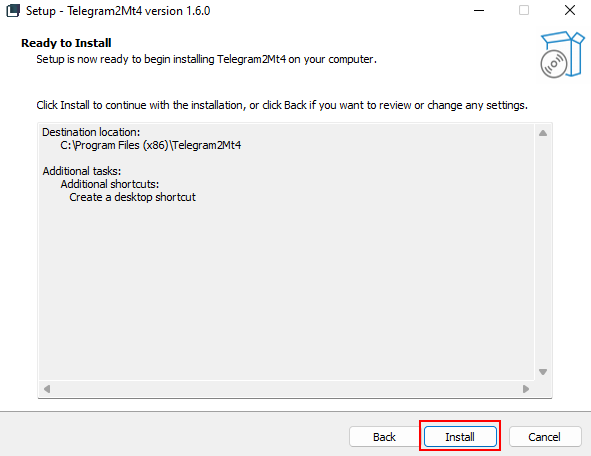
Depending on your device, the installation time may differ. Do not close any windows until the installation and the setup is complete.
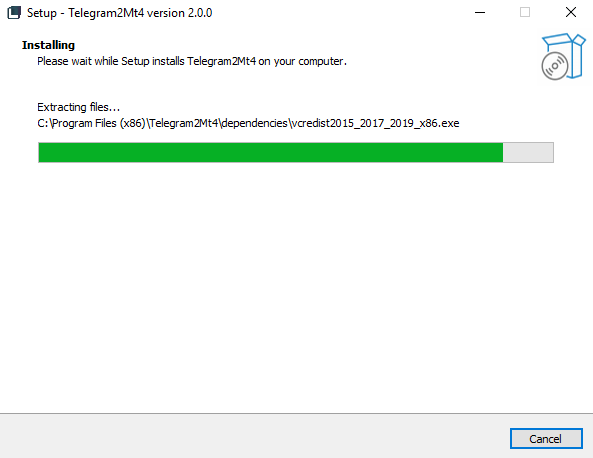
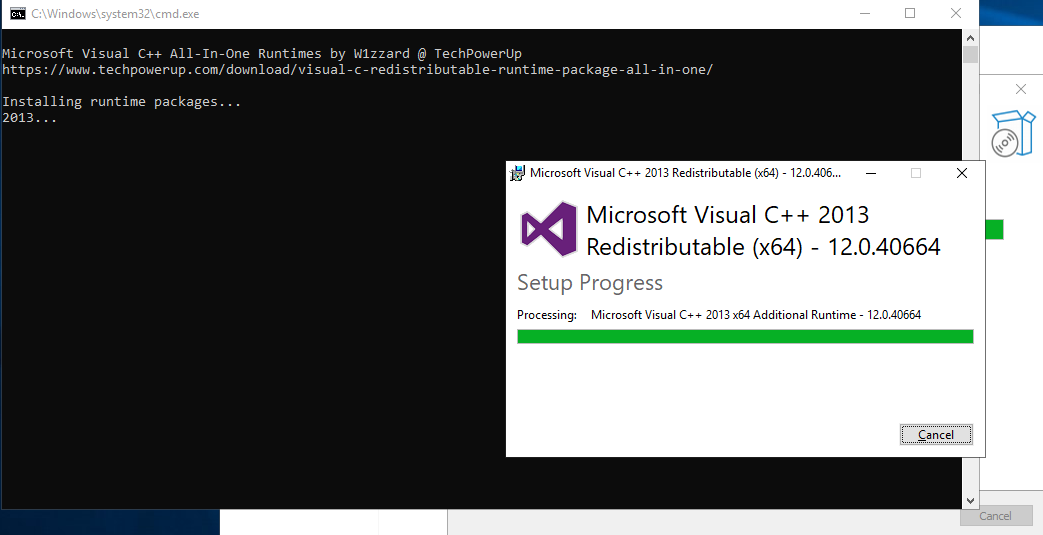
During the installation, The setup will attempt to install necessary Microsoft updates. Do not cancel them. These updates are required to run the copier.
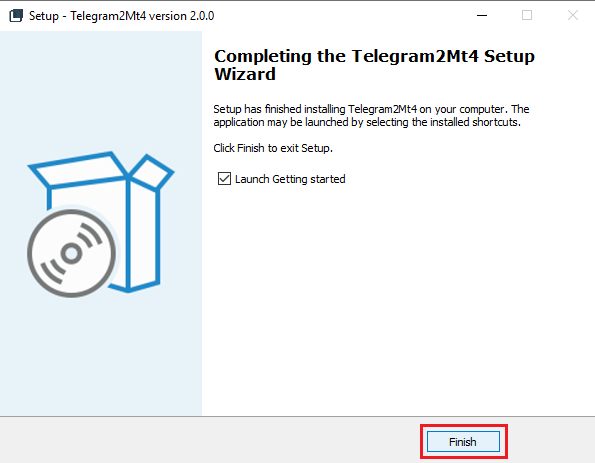
Once the installation is completed, keep “Launch Getting started” option checked only if required before clicking “Finish”.
2. Sign-in process.
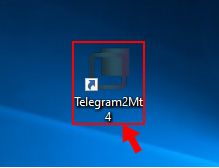
**Make sure your Telegram account is at least two weeks old before you sign-in to the copier using your Telegram account.Now, go to the desktop and open the Copier app.
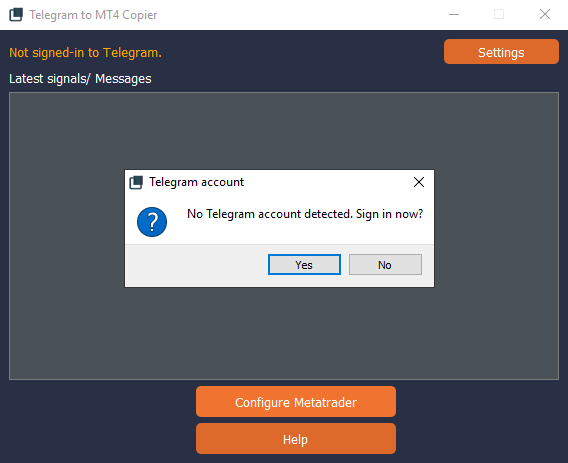
After opening the app, a prompt will displayed to sign-in to telegram. Click “Yes” to sign-in.
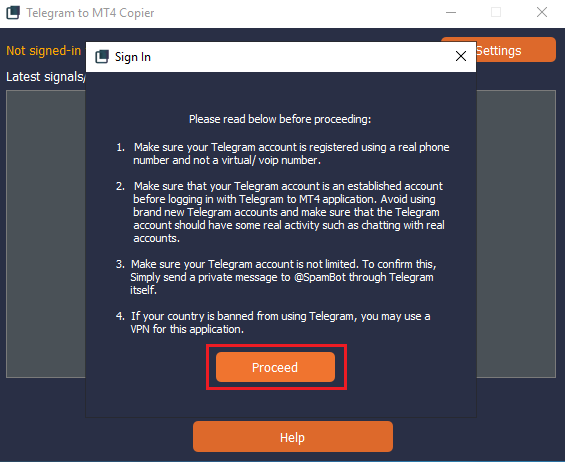
Read instructions from 1 to 4 thoroughly. Click “Proceed” to go to the next step.
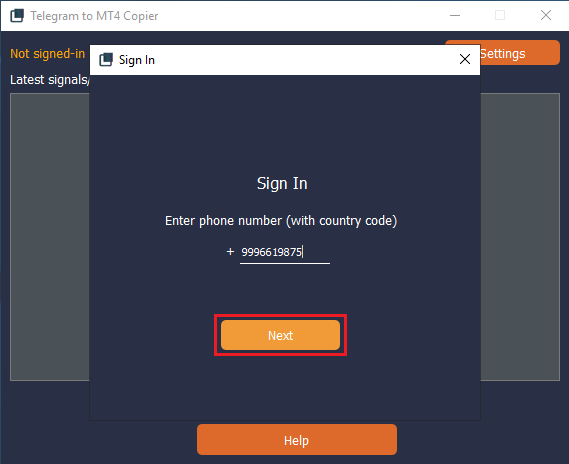
Next, enter your phone number. Phone numbers should be in international format (including country code). Click “Next” to continue.
A confirmation code will be sent to your telegram account. Enter this code and click “Sign-in” to complete the sign-in process.

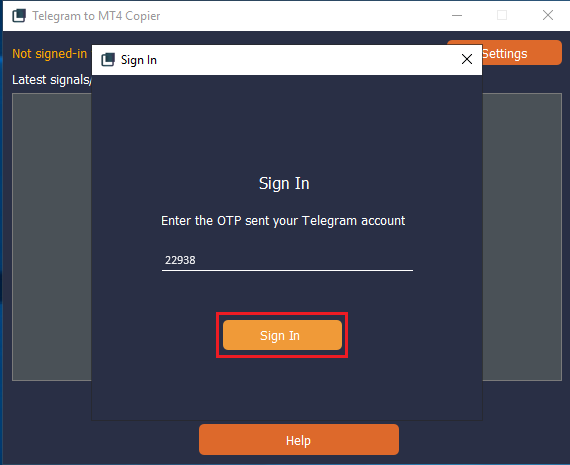
Once the sign-in is complete, Click “OK” to exit the window.
3. Configuring the Telegram2Mt4 client.
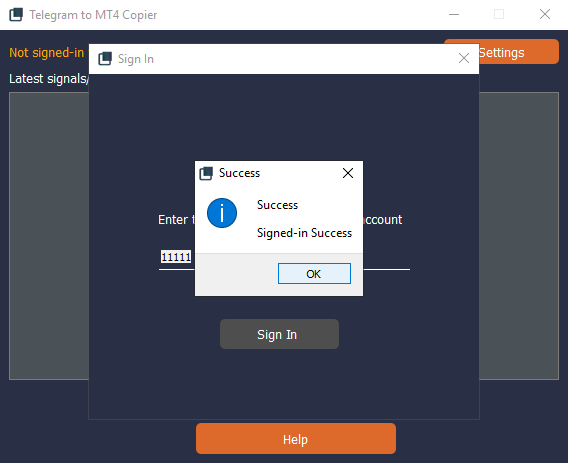
The telegram signals received will be displayed in the grey area. When a message is detected as a signal, it will be shown here.
MT4 and MT5 terminals must be configured to work with the copier. Click on Configure Metatrader.
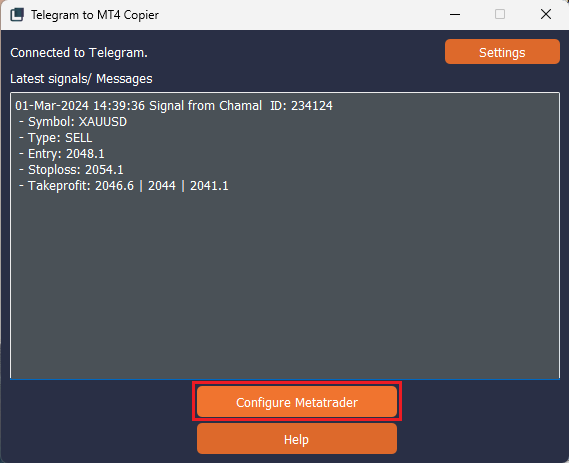
Select the Meta trader installation you want to send the signals to and click proceed.
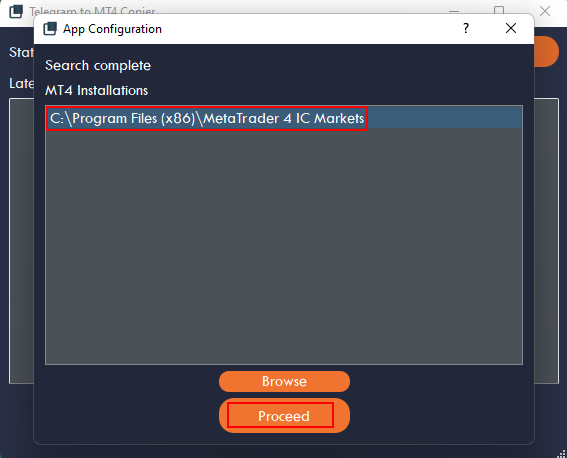
If there are no installations listed here, they can be manually selected using the “Browse” option. ( To check where the MT4 platform is installed, right click the desktop shortcut, then select ‘Open file location.’)
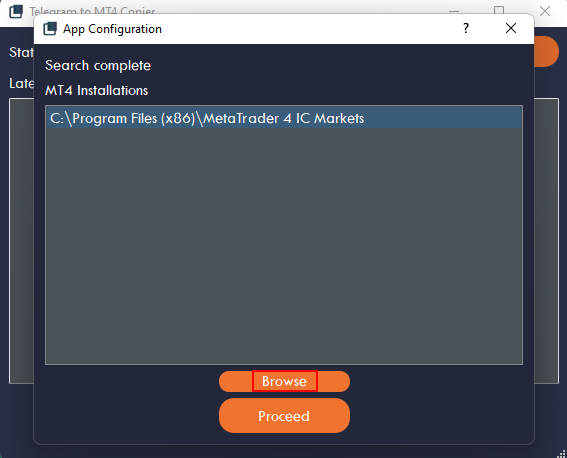
After clicking proceed, in the App configuration window, You will see all chats in your telegram account in the next window. The chat type and the name of the chat is listed here.
Chats to send signals from to the Mt4 can be selected from here.

In this instance, “[Channel] Signal Test” chat has been selected.
Note: [Channel] Signal Test is a channel used for demonstration purposes only. Make sure you select a desired channel to copy signals from the channels available in your telegram account.Once the chats are selected, click “Update.”
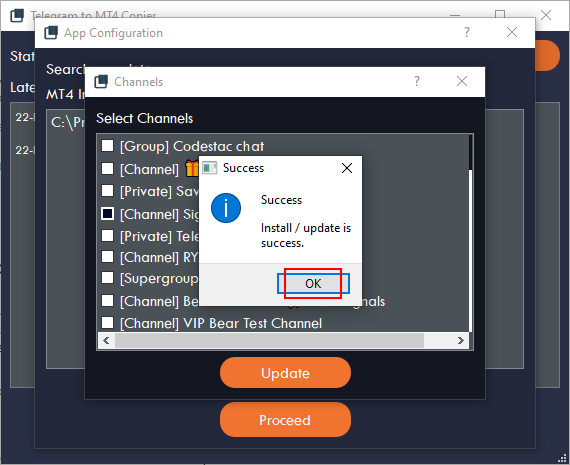
**Do not close the Telegram to MT4 Copier window, in order to receive signals from the telegram account.
4. Configuring MetaTrader 4 Settings.
Make sure to log in to a MT4 account provided by a broker on the Mt4 platform to set it up.
Go to Tools > Options and go to Expert Advisors Tab.

In the Expert Advisors tab, Select “Allow automated trading” and “Allow DLL imports options are checked” and press OK.

The installed Telegram2MT4 and Telegram2MT4- Demo expert advisors would be displayed under the Navigator tab.
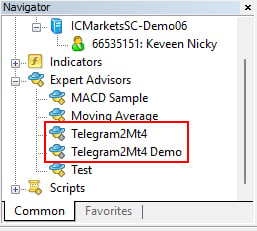
If not displayed, Refresh the expert advisors list.

To attach an Expert Advisors to a chart, right click on an expert advisor and select “Attach to a chart.” The Expert Advisor will attach itself to the active chart in the middle of the screen.
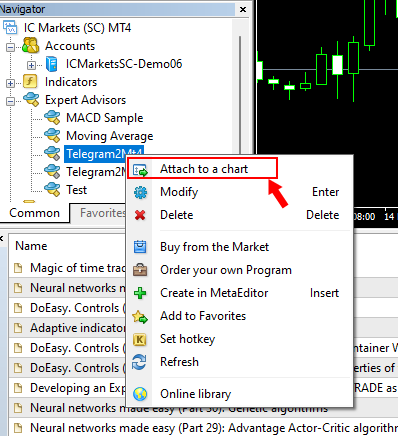
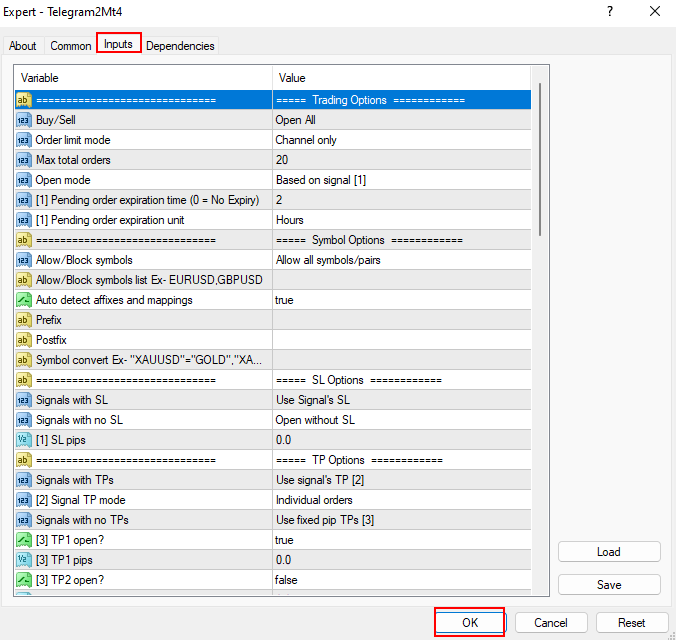
After attaching to a chart, Expert Advisor related settings can be configured through the Inputs tab (Highlighted in red). After checking, press “OK.”
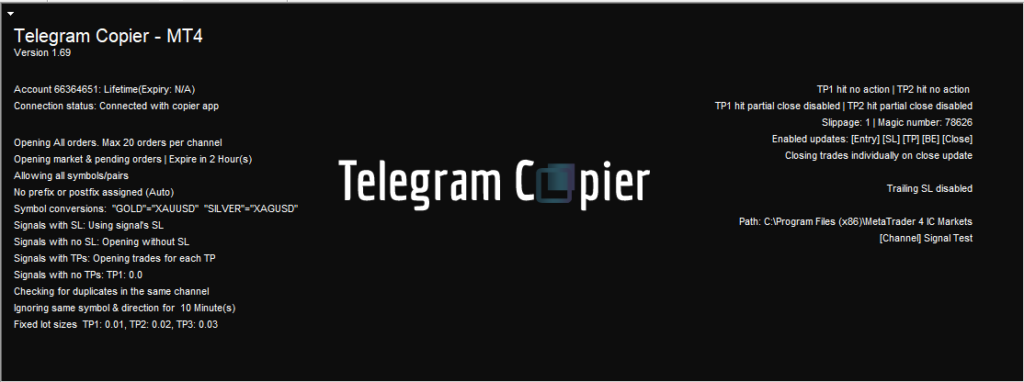
When the Expert Advisor is attached to the chart, all settings and details relevant to the Telegram Copier will be displayed on the screen: Version, Mt4 Account number, license status, connection status and the Mt4 install path and the chats that have been assigned to the Mt4 as well.
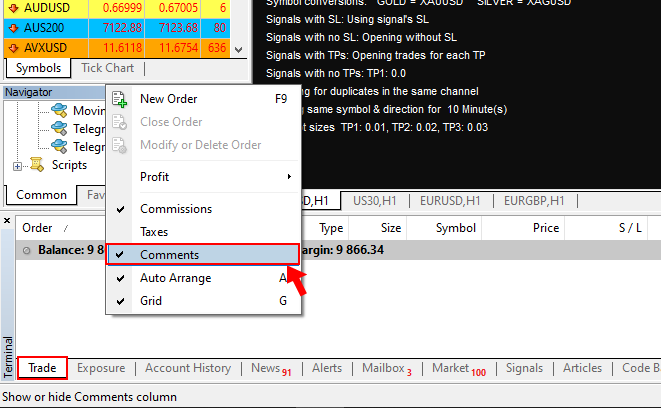
Enable “Order – Comments;” by Right clicking anywhere in the trade tab > make sure comments are checked to receive key information when copying signals.
**In order to receive signals, Make sure that both the Copier app and the MT4 Terminal(Loaded with copier EA) is kept open. If one of them are closed signals will not be sent to the MT4. Also, make sure the PC/Laptop does not go into sleep mode.
Now your copier is ready to receive signals. Thank you and Happy trading!